


XPS Network and KINEXON Sports announce new API integration
A new connection brings KINEXON Sports player-tracking data into customizable XPS Reports, allowing coaches, performance staff and sports directors...
Read More
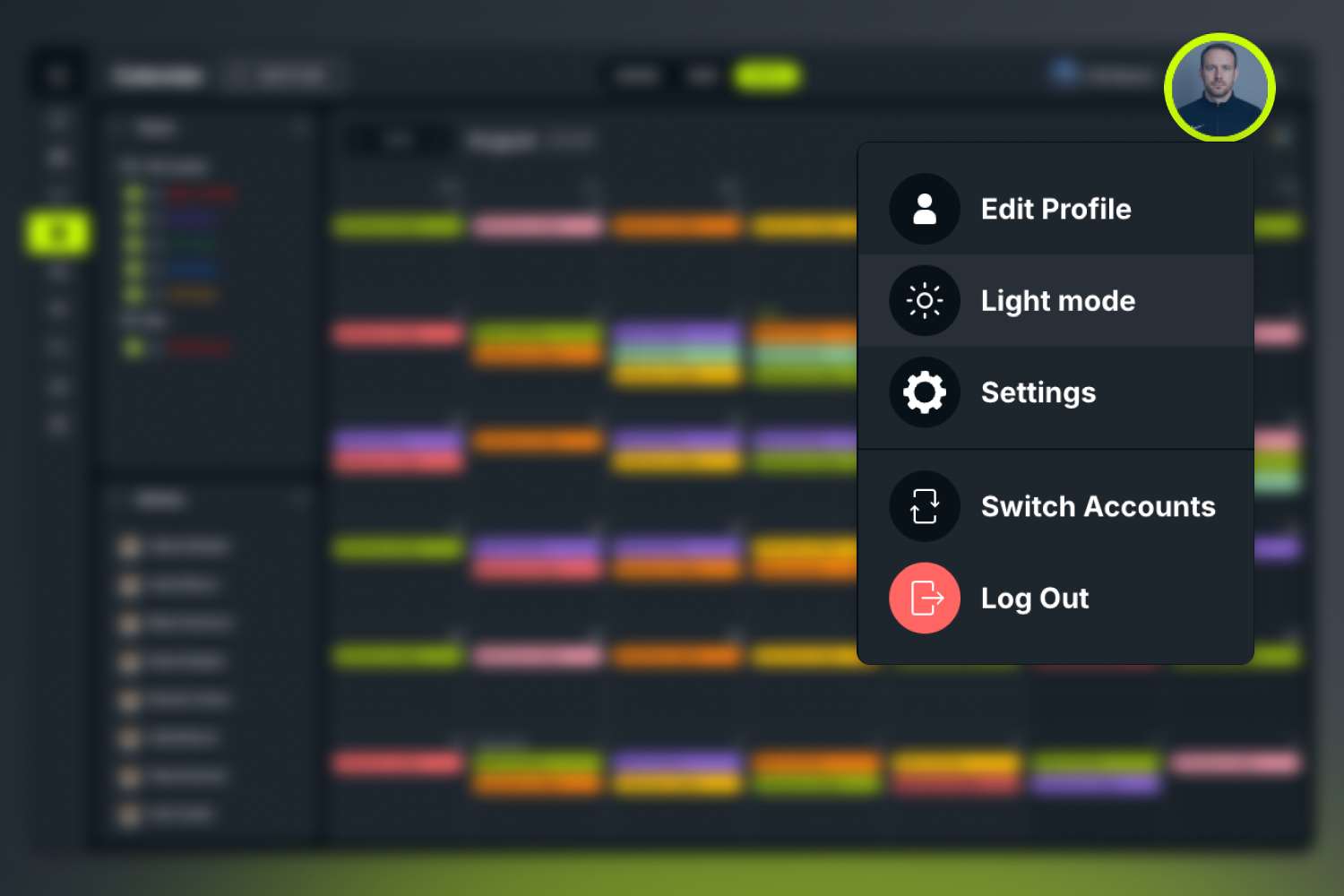
Dark mode is now live in the XPS Network Browser.
Cleaner on the eyes. Sharp on the screen. And especially nice when you’re planning tomorrow’s session late at night or checking the calendar before your first coffee.
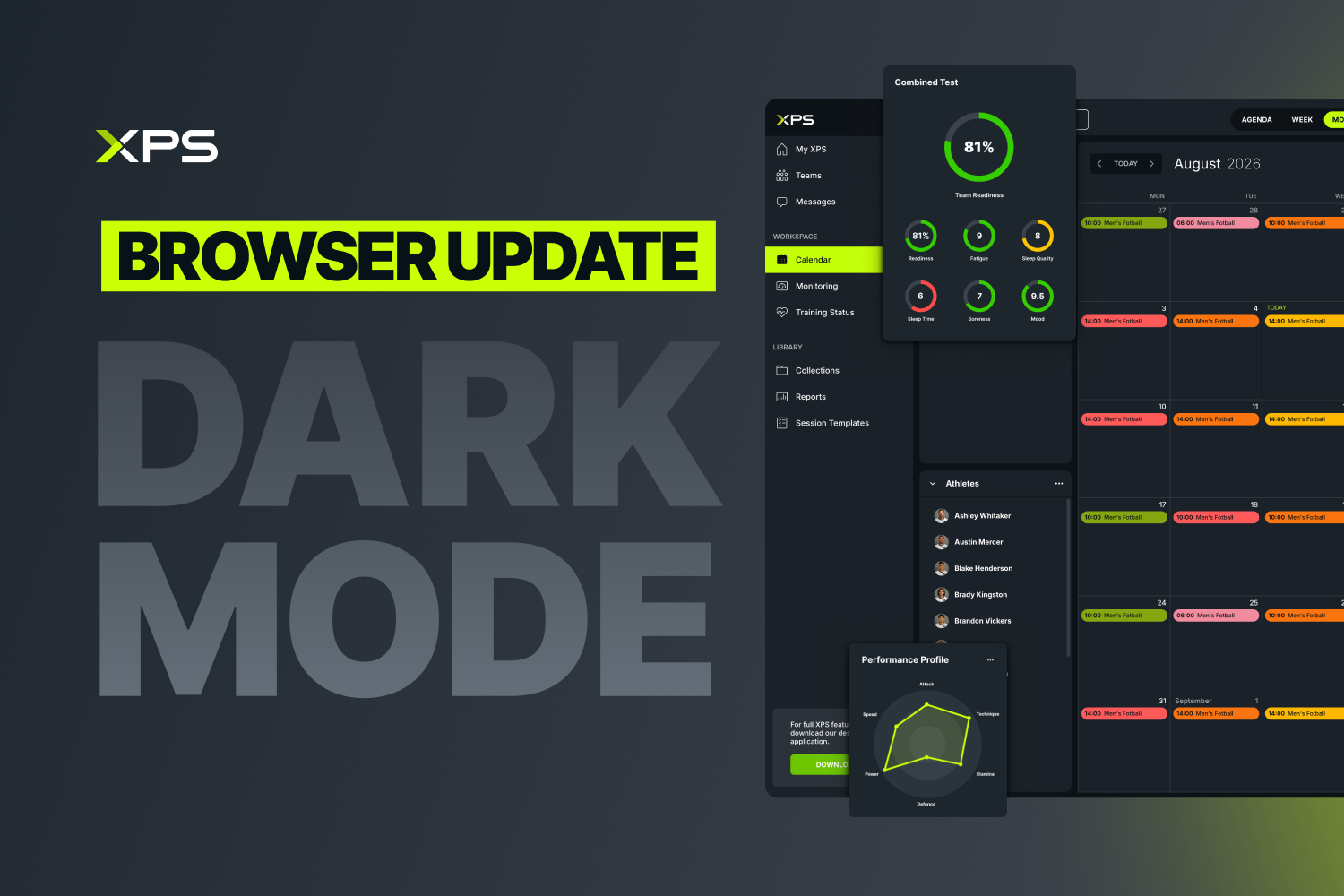
Let’s take a closer look at the features available in XPS Browser – a streamlined version of the full XPS Desktop app.
From the first idea to the final session, XPS gives you the tools to organize your work and keep the team moving in the same direction.
Use Teams to access the right athletes and staff. Keep training, matches and team events organized in one shared Calendar, where you can manage attendance and see exactly who’s involved in each session.
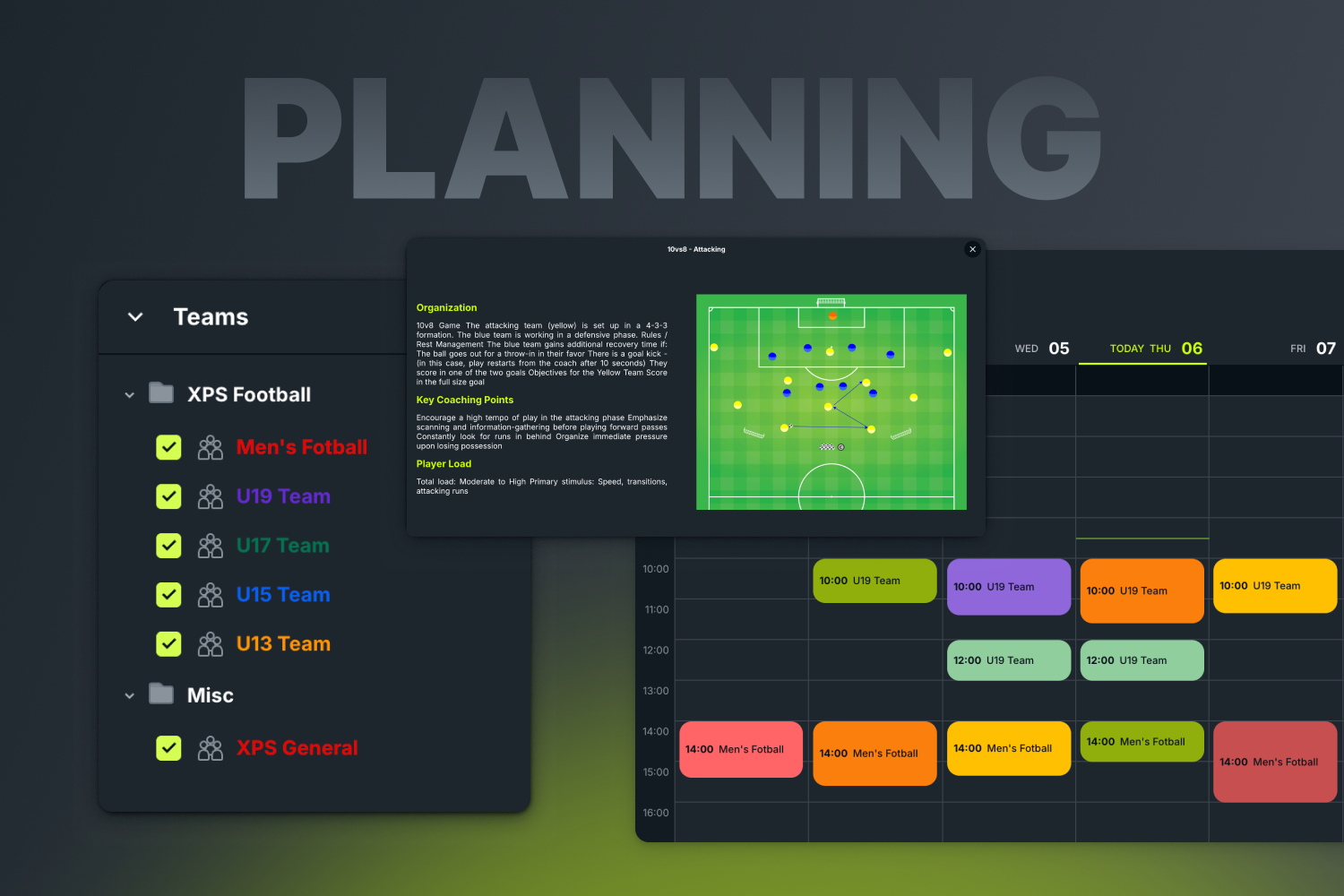
Need to get something out to the team? Use Messages for personal, team or custom group chats and share drills, documents and other coaching content directly in the conversation.
You can also turn your best sessions into reusable Session Templates that coaches can adapt and share in a click.
Your ideas shouldn’t disappear into folders, notebooks and old chat threads.
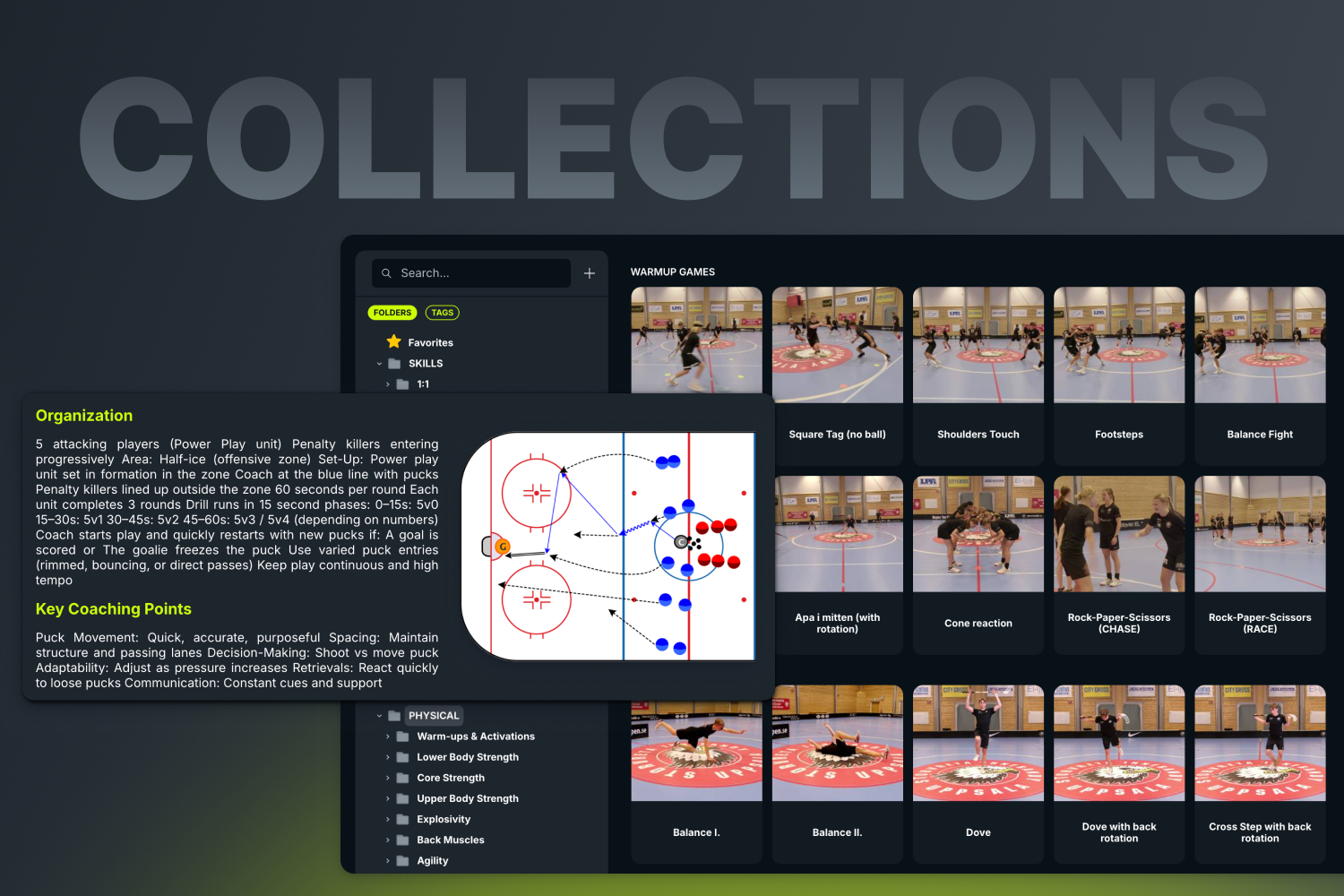
With Collections, you can build a shared coaching library that keeps your methodology organized and easy to use across the club.
Everything is there when you need it, whether you’re planning tomorrow’s training or looking for something you created three seasons ago.
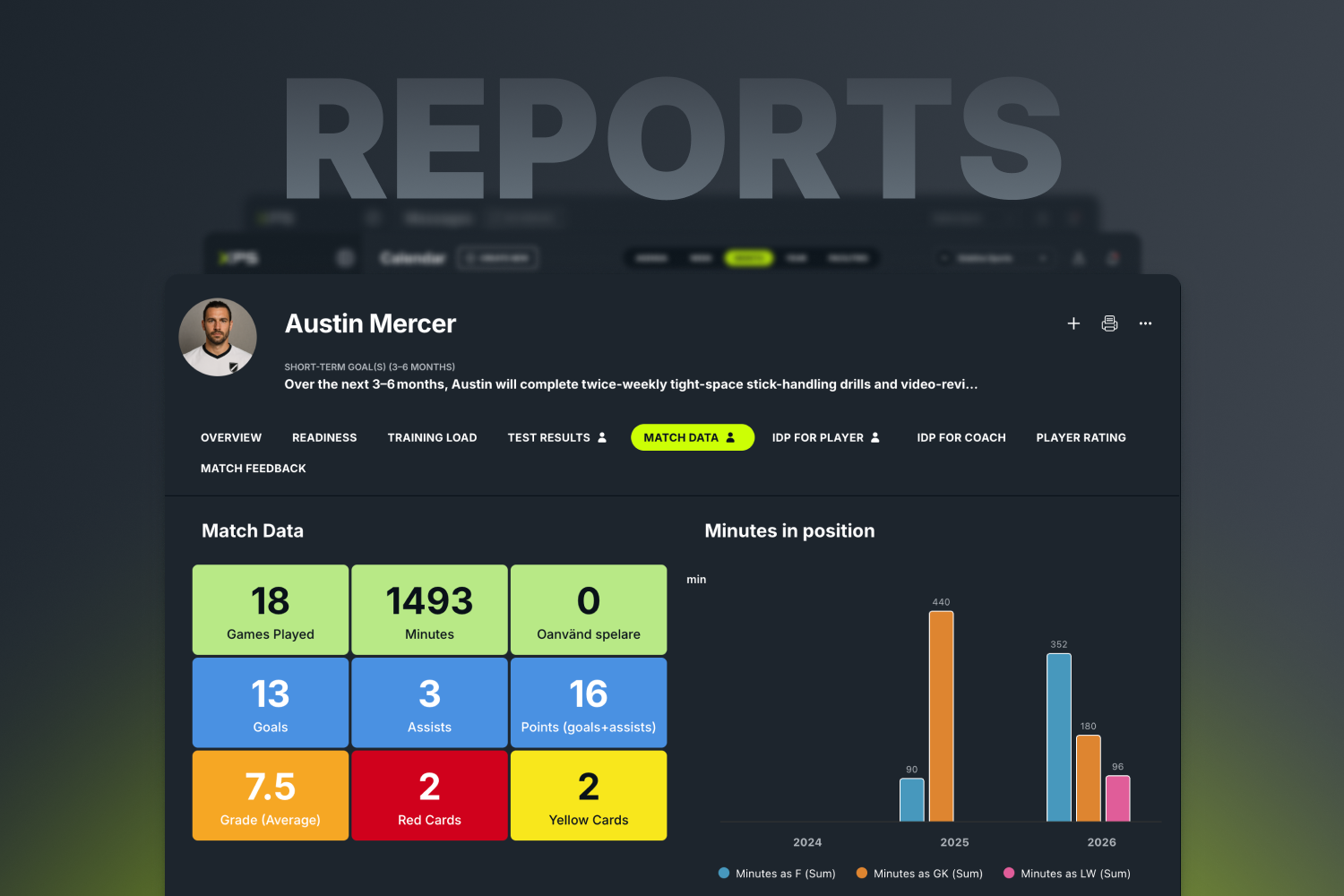
Bring training, wellness, testing and match data together to understand what’s happening across your team.
With Reports and Monitoring, you can build customizable athlete dashboards using the widgets, charts and KPIs that matter to your coaching process. Compare athletes, follow progress, uncover trends and quickly identify who may need attention.
When connected to XPS Health, you can also view each athlete’s Training Status, including availability, injuries and expected return dates, giving coaches and medical staff a clear, shared picture before training starts.
The data is already there. Dark mode just makes it look better.
Click your profile icon, then choose between light mode and dark mode. That’s it, the browser switches immediately. Have fun!

A new connection brings KINEXON Sports player-tracking data into customizable XPS Reports, allowing coaches, performance staff and sports directors...
Read More
This past weekend, our global sales team came together in Belgrade, Serbia for several inspiring days of conversation, collaboration...
Read More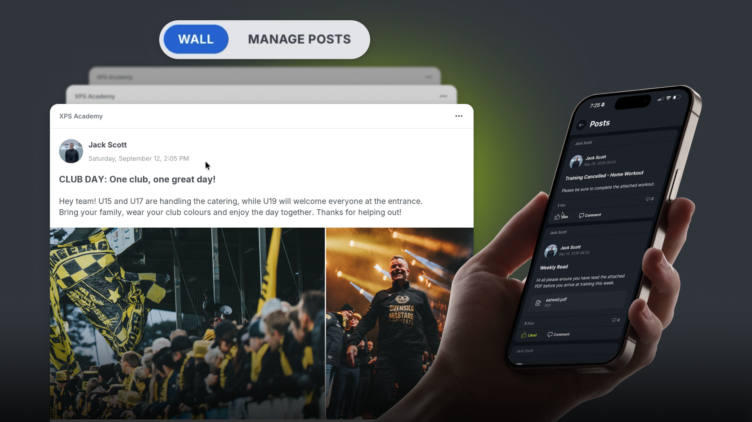
We are excited to release Posts, a highly requested feature which is essentially a shared feed inside your XPS...
Read MoreThank you!
Our representative will get back to you soon with time suggestions for an online meeting.
If you have any questions contact us at support@sidelinesports.com
Schedule a short online meeting with our representative
Try free XPS 14-days trial right now No credit card required


