


XPS Network and KINEXON Sports announce new API integration
A new connection brings KINEXON Sports player-tracking data into customizable XPS Reports, allowing coaches, performance staff and sports directors...
Read More
September 30, 2026
3 min reading
We are excited to release Posts, a highly requested feature which is essentially a shared feed inside your XPS for sharing updates with your club, a team, or a specific group.
Write a post, attach what goes with it, and your audience sees it and can comment. On desktop, in the browser, or on mobile, with the same experience everywhere.
Check our tutorial below, or visit XPS Academy.
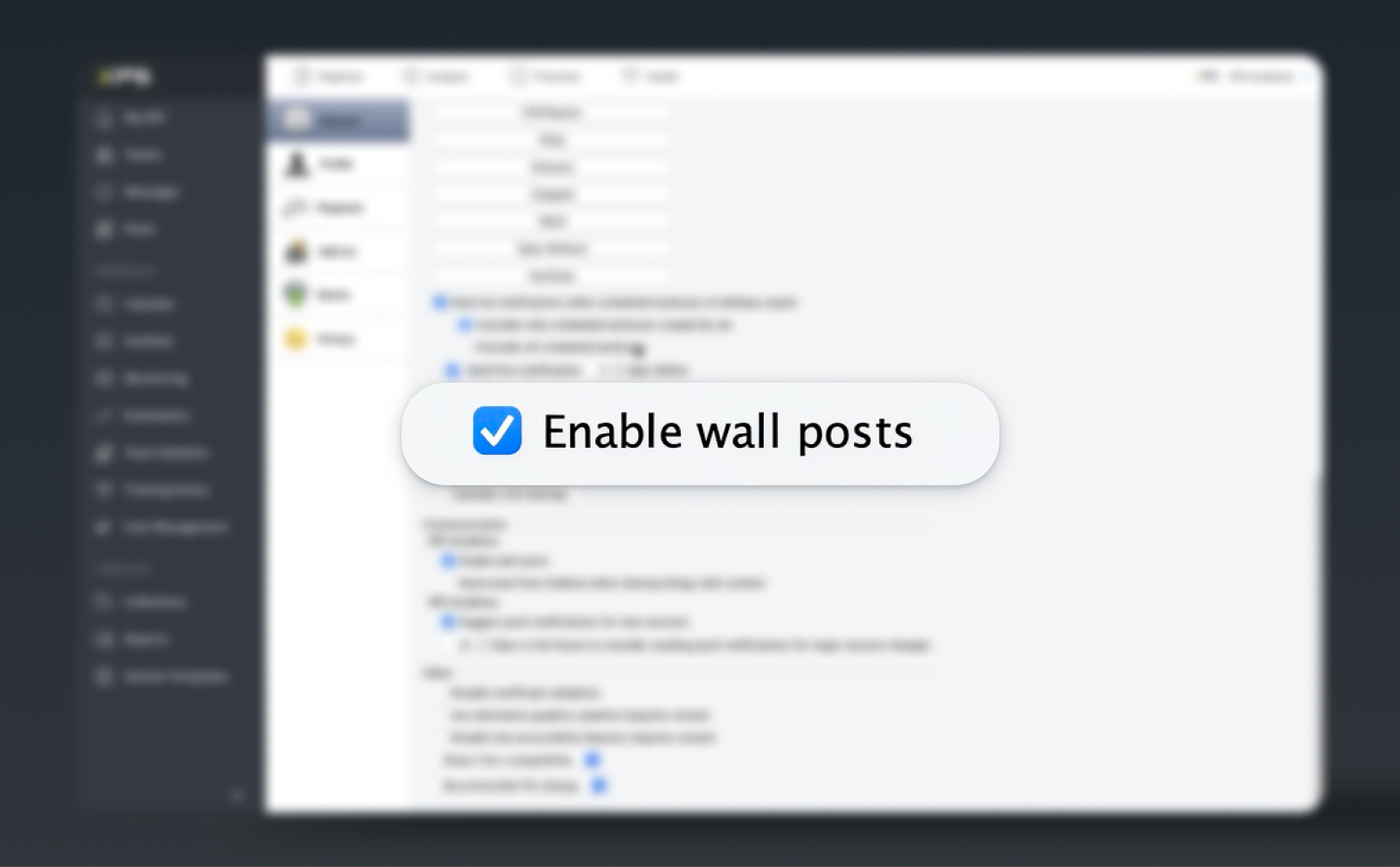
Your club administrator needs to enter the club account settings and check “Enable wall posts” in the Communication section. After restarting your XPS, you’ll see Posts in your left main menu.
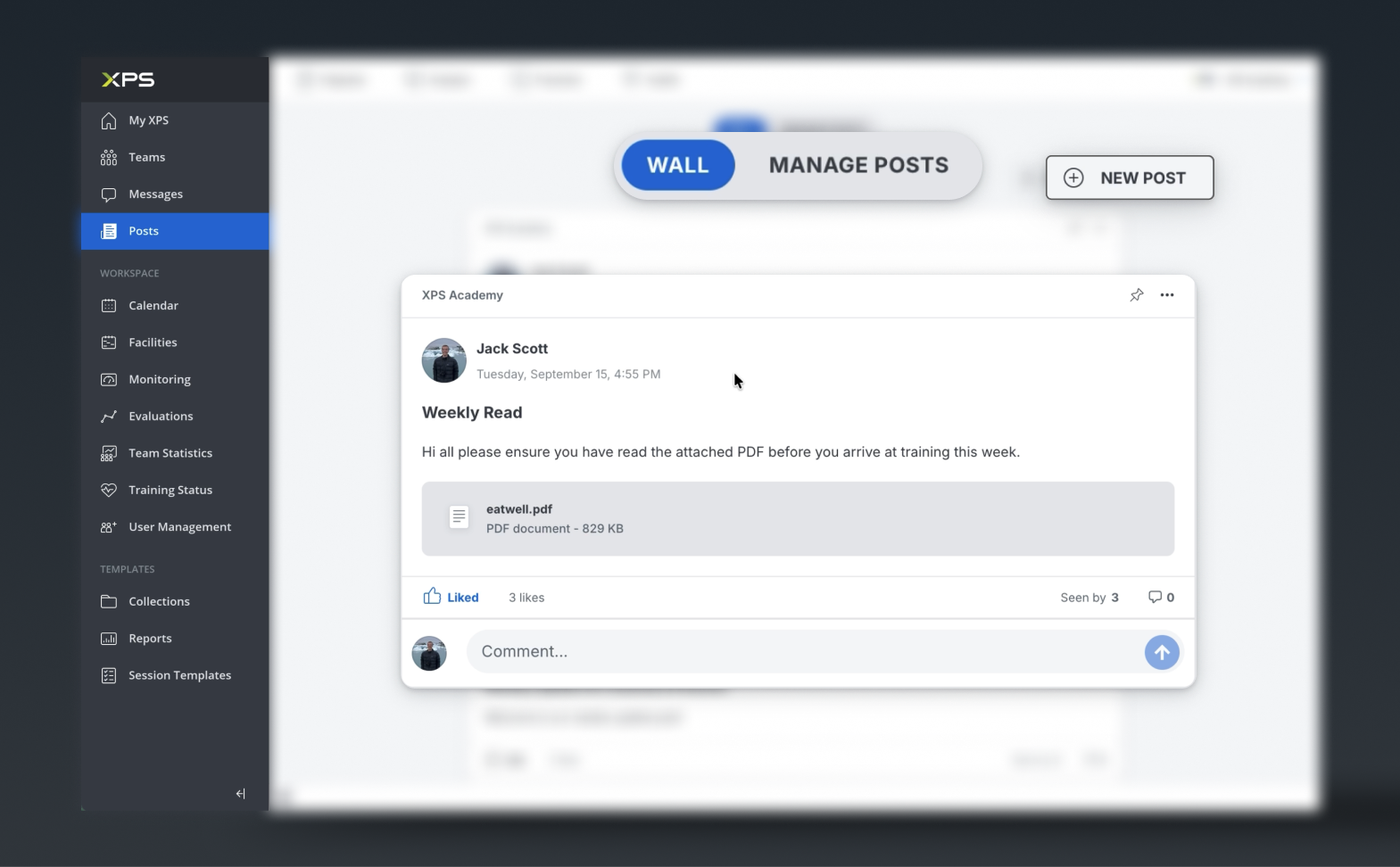
Open Posts from your left menu and you’ll see two views: Wall and Manage Posts.
Everything you publish lands on the Wall, the feed your club sees by default when they open Posts.
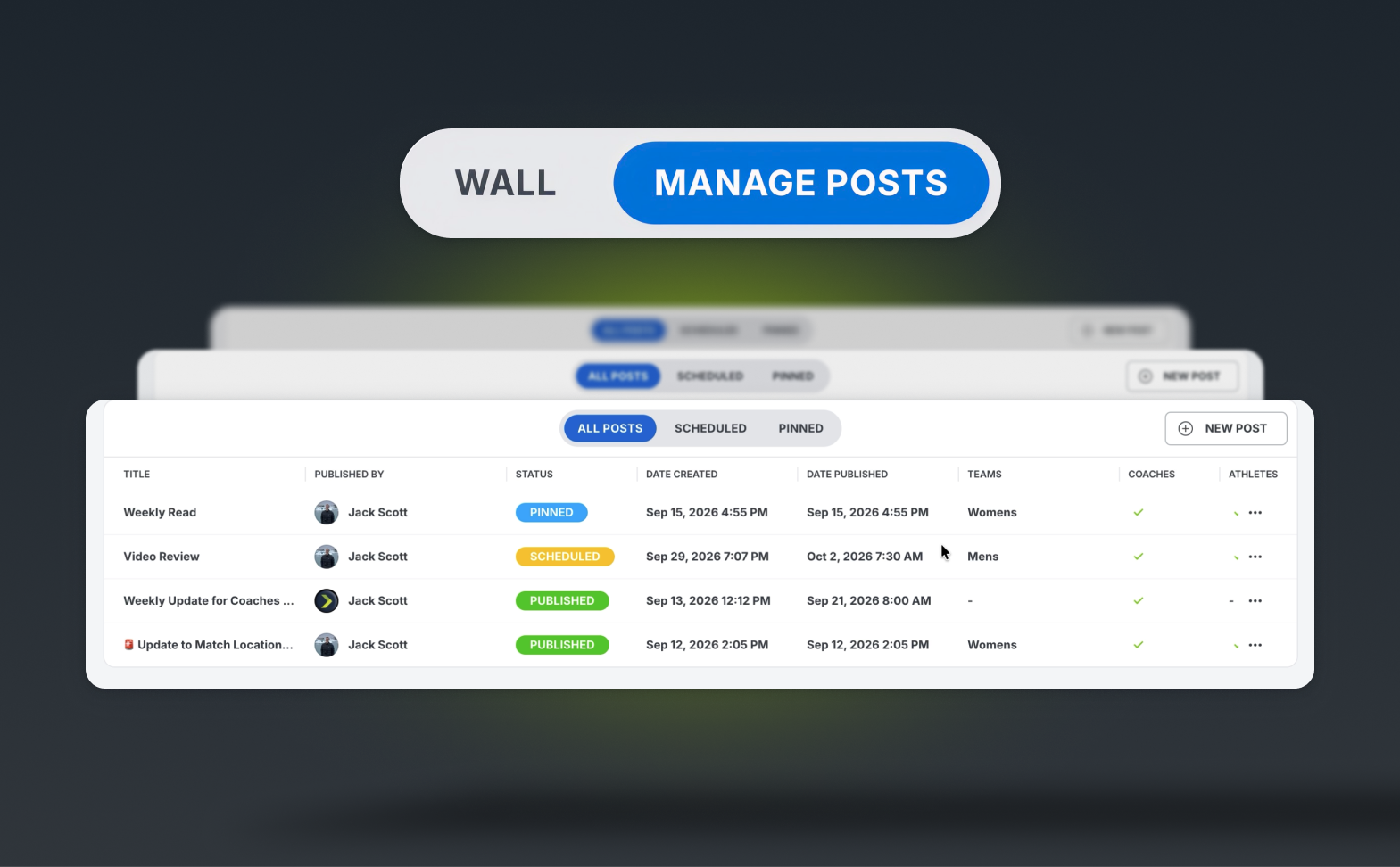
The Manage Posts section gives you the full list: each post’s status (published or scheduled), plus filters for scheduled and pinned posts, so a busy feed stays easy to check.
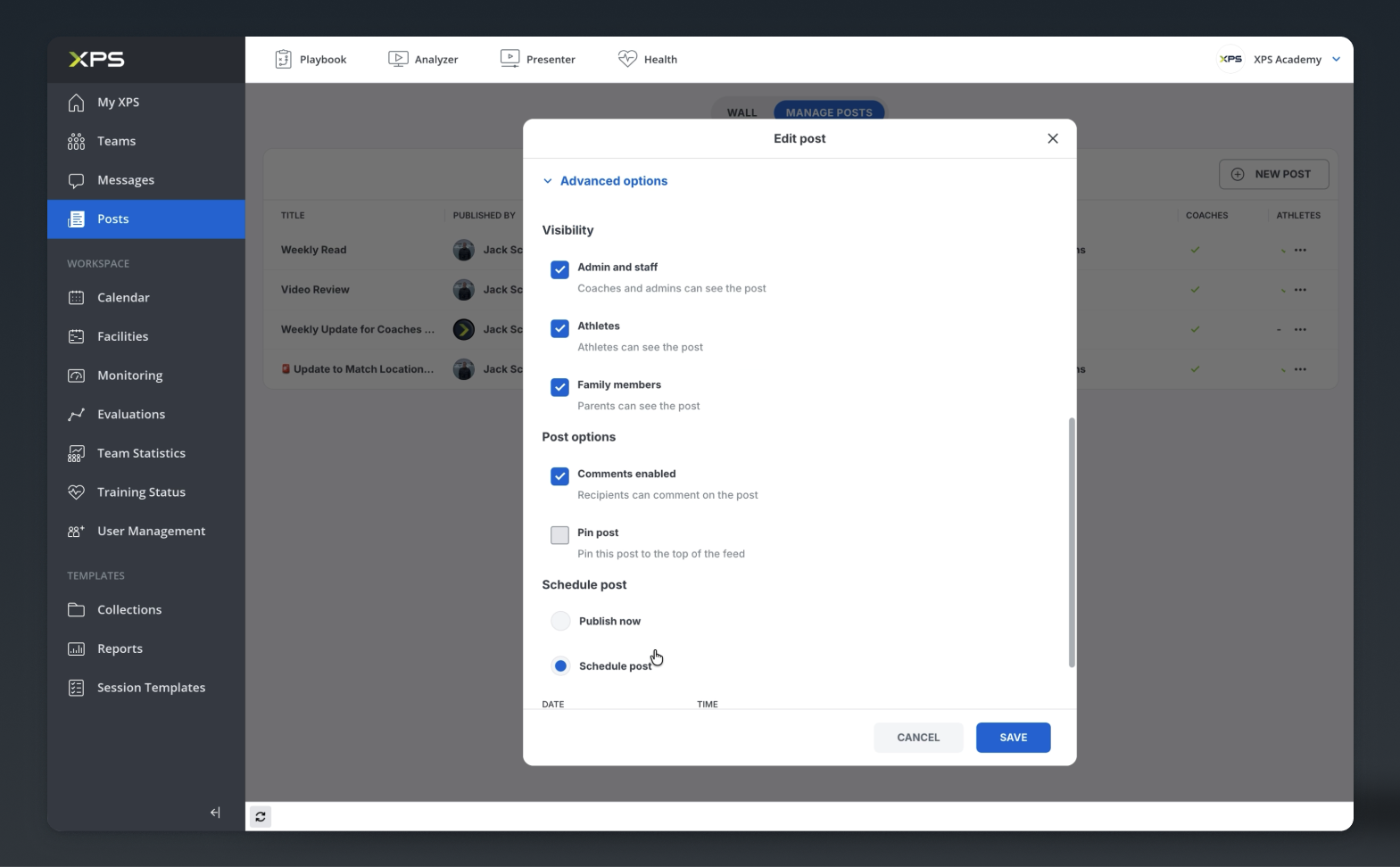
Open any post from its three-dot menu to edit the attachment, audience, or timing before it goes out.
Write a title and a message, choose who it’s from – you as the coach or the club – and choose the audience: everyone, one team, or a specific group. A training cancellation only needs to reach the team it affects.
With your post you can attach:
Advanced options available on every post:
A post created on desktop shows up in the browser and on mobile app right away, so coaches and athletes see the same thing wherever they check.
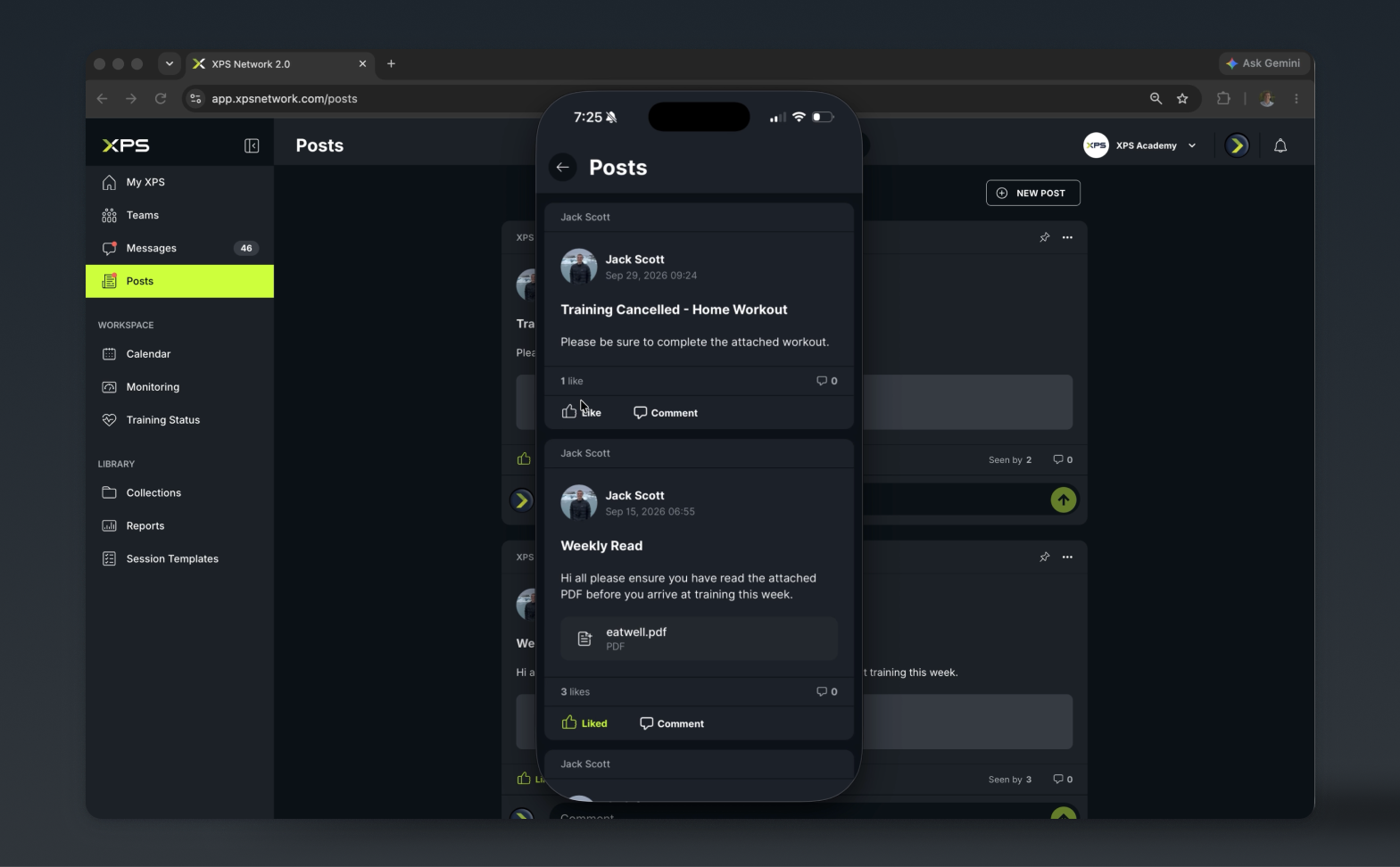
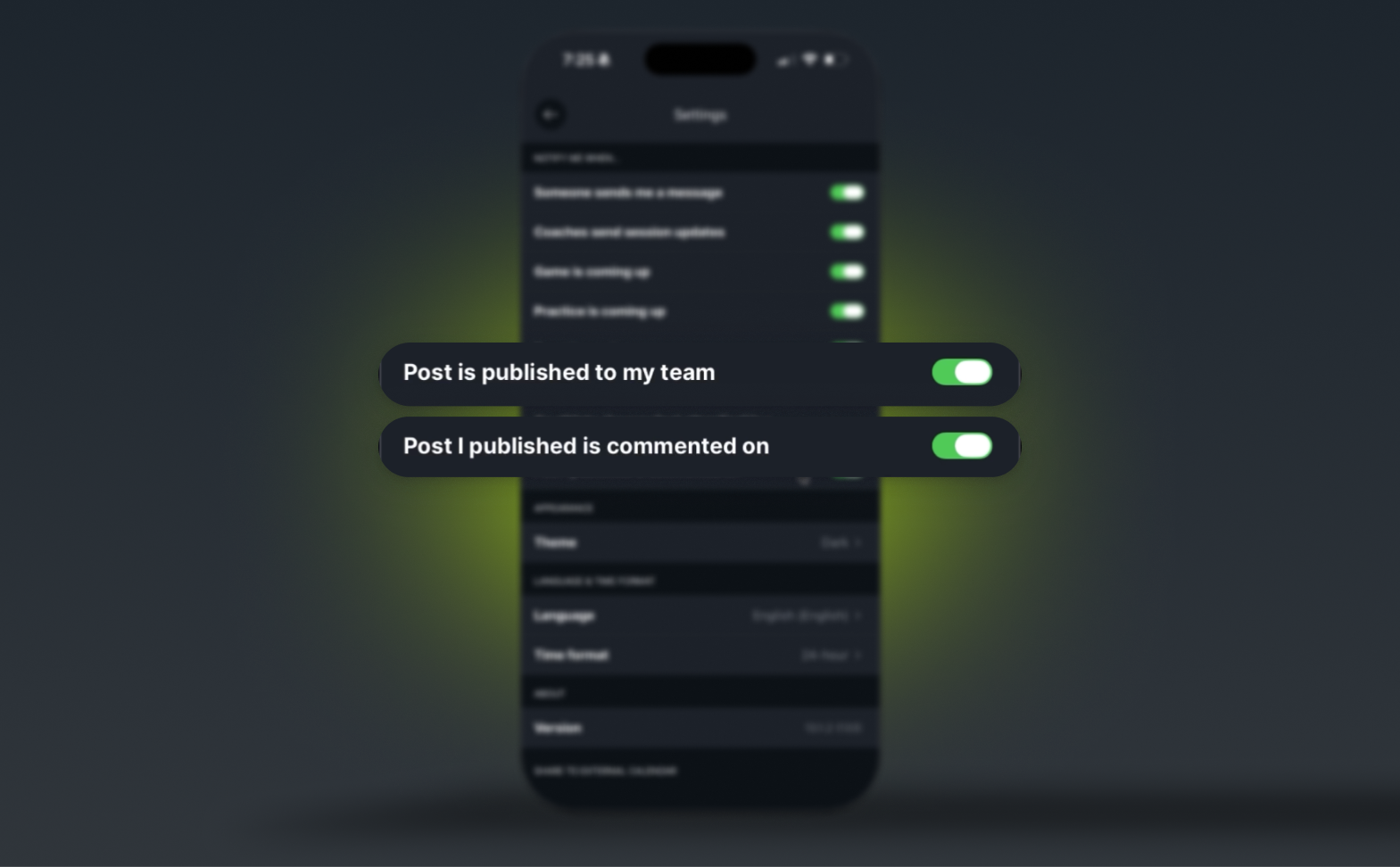
Push notifications tell members the moment a new post goes live or someone comments on it, and tell coaches when someone comments on a post they published. Both are on by default, but can be switched off or back on independently, for coaches and athletes, in the app’s notification settings.

A new connection brings KINEXON Sports player-tracking data into customizable XPS Reports, allowing coaches, performance staff and sports directors...
Read More
This past weekend, our global sales team came together in Belgrade, Serbia for several inspiring days of conversation, collaboration...
Read More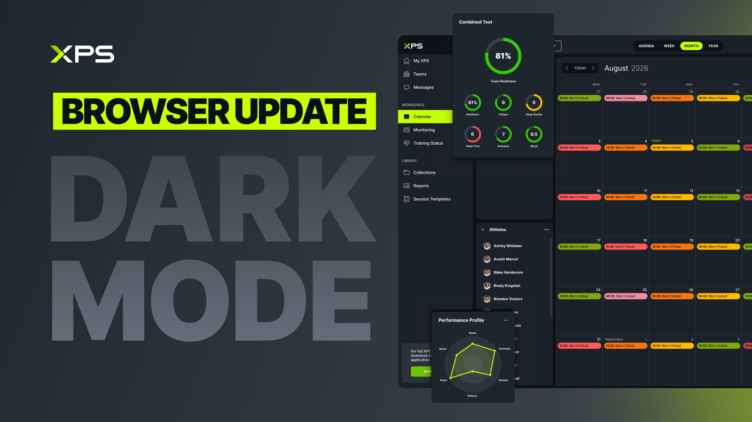
Dark mode is now live in the XPS Network Browser. Cleaner on the eyes. Sharp on the screen. And...
Read MoreThank you!
Our representative will get back to you soon with time suggestions for an online meeting.
If you have any questions contact us at support@sidelinesports.com
Schedule a short online meeting with our representative
Try free XPS 14-days trial right now No credit card required


